bsidian is an all-powerful note-taking app. By linking together a network of local markdown files, Obsidian can be anything from a personal knowledge management system to a creative workspace for upcoming projects. Whether you’re a student taking notes for a class, a Dungeon Master planning their next session, a writer crafting a novel, or a developer documenting their codebase, Obsidian is a versatile platform that can help you turn scattered thoughts into a living network of insight.
One feature that makes Obsidian stand out is its thriving ecosystem of community-built plugins, granting users extreme flexibility to personalize their workflow. Need task management? There’s a plugin for that. Want to track habits, visualize data, or publish to a digital garden? You’ll find plugins—often community-built—to support these use cases and more. In addition, since Obsidian stores everything in plain-text Markdown files, your notes stay future-proof and portable.
Clearly, Obsidian is something I’m passionate about, but I’ll leave it to you to build your own empire if you’re interested. There are hundreds of tutorials on how to get started with Obsidian online (and sometimes they may be necessary because it can certainly have a learning curve… For example, one of my favorite instructional resources is Nicole van der Hoeven’s Obsidian series on YouTube—check it out!) However, the purpose of this blog post is to showcase my own Obsidian vault, provide you with a glimpse into my workflow, and demonstrate what’s possible on this incredible app. Let’s take a look!
First, I present a Video Overview that contains:
- A history of my note-taking journey
- An exhibition of a GitHub repo I created for migrating from the DayOne journaling app to Obsidian
- A tour of my current Obsidian setup as of May 2025
Then, I continue to discuss:
- My Ideology towards note-taking and using Obsidian
- Important Plugins that power my workflow
- Future Ideas for features I’d like to implement

Video Overview
My Ideology
A bigger dream than my Obsidian vault is an entire LifeOS that truly functions as a second brain. I envision waking up every morning, logging into my LifeOS, and immediately having the power of all my tools and knowledge at my fingertips. It would be integrated with augmented reality (AR) so that I could pull up a note whenever and wherever I want. There would be an advanced AI digital assistant that would serve as my schedule manager, encyclopedia, therapist, and map. However, at the time of this writing, unfortunately we're far from capable of achieving these visions, so for now, I connect the aspects of my life with the next best thing: Obsidian.
Overall, my ideology is:
Put as much content in your Obsidian vault as you possibly can.
The more ideas you put, the bigger a pool you'll have to draw from when you need inspiration. The more journals you write, the more memories you'll have to look back on. The more media formats you include, the more opportunities you'll have to find connections between them and uncover a sophisticated beauty you may otherwise miss. If everything is all in one place, it becomes more intuitive to switch between contexts, and the bigger it gets, the more it builds off of itself, snowballing into a true second brain.
The idea of creating an interconnected web of thoughts isn’t new—Obsidian gurus generally credit the root of this concept to the Zettelkasten method, a note-taking system pioneered by German sociologist Niklas Luhmann. Luhmann famously kept a filing cabinet of over 90,000 index cards, each with a single idea and links to other cards through a system of references. With this method, he was able to achieve extraordinary productivity, including publishing over 70 books, and he attributed his success to the great "communication partner" that was his notes. In addition, offloading your memory into a trusted, ever-growing source like a Zettelkasten has been shown to externalize your thinking and reduce cognitive load.[1]
In Obsidian, Luhmann's ideals of easy access, connection, and naive trust are even more achievable, and I believe in taking advantage of this to the fullest extent. Instead of handwritten references, Obsidian has a powerful search engine that can match a note's title, metadata properties, tags, keywords on the same line, or even small fragments of text buried deep inside the Note's contents. It's important to spend time understanding the search engine so that you can develop strategies to make your notes as searchable as possible. For example, I like to uphold a well-structured tag and folder system as shown in the Vault Specification section and write informative titles so that I can accurately understand my notes' purpose at a glance.
With regards to connection, Obsidian has tags and bi-directional links that facilitate seamless navigation between frequently accessed notes. For example, many Obsidian users like to create Maps of Content (MOCs) or tables of contents for groups of notes in the same space. This can either be done manually, by typing a list of links to the notes in a group and remembering to update the MOC when a new note is added, or automatically, by creating a query that displays all notes with a certain property (i.e. notes in the School folder that contain the tag problem-set).
Obsidian also supports custom commands, templates, and user-scripts, which can be used to generate meeting notes with pre-filled headers, bulk rename notes with a certain property, assign hotkeys to open a scratchpad note, create custom dashboards based on the time of day, and much more. In general, if there's additional functionality you'd like in your vault, it's almost certainly possible to implement if you're willing to spend the time and energy to set it up, especially if you're comfortable programming. I believe in dreaming big and creating any navigation system, script, or template that you might need—Obsidian makes it easy to set up custom features, and there's no harm in a tool you end up barely using!
Prioritizing Tags Over Folders
With regards to structure, I generally try to prioritize using tags over folders for organization. Folders create distinct namespaces that become isolated from other notes, and with multi-leveled hierarchies, it can become difficult to determine which taxonomies should have precedence over others. For example, if you want to store photos from a trip to Europe in your vault, would you create a Europe Trip folder inside your Photos folder to put them with your other photos, or would you create a Photos folder inside your Europe Trip folder to put them with your other Europe trip files? It doesn’t make sense to separate these classifications. It would make more sense to create tags for both Europe Trip and Photos and then to attach both of them to files that are simultaneously from Europe and photos. As explained in the Metadata Menu plugin section, I take this a step further and categorize my tags as well—in this example, I might also create a tag class called Media Type for the Photos tag to be classified as.
The only downside to using tags over folders is that can you seem to collect massive piles of notes. When you’re using the tags to search for tagged notes, it’s easy to find what you’re looking for, but if you just want to scroll through your notes one-by-one, it can feel like an unordered mess. However, in my opinion, that’s the beauty of Obsidian:
You should never have to scroll through your notes one-by-one!
Instead, you can use Obsidian’s powerful search engine and create custom displays to view your notes in any arrangement you need. All in all, I try to prioritize organization with tags, but in some places, it still makes sense for me to separate notes that are in clearly distinct namespaces, so I do have some folders.
Vault Specification
As shown in the Video Overview, the top-level organization for my Obsidian vault is the folders: Assets, System Scripts, Dance, Planner, School, Journal, Projects, and Wiki. Assets and System Scripts are for internal workings of the vault, which aren’t meant to be referenced day-to-day. Dance, Planner, and School are the topic-oriented folders for storing my dance files, to-do lists, and school files respectively. Finally, Journal, Projects, and Wiki are the content-oriented folders where Journal notes are relevant for the short duration they’re written, Project notes remain relevant for a period of time until the project is finished, and Wiki notes remain relevant for an extended period of time but have a textual or informational format. In addition, these content-oriented folders share a topic tag that can be set to “music”, “technology”, “travel”, “my stuff”, and more. The folders besides Assets and System Scripts are discussed below.
choreographer, dancers, style (such as "contemporary", "hip hop", or "jazz"), type (such as "masterclass", "improv", or "concept"), and music credits. |
|
|
topic tag, Journal notes include a format tag to distinguish between formats like "reflection", "essay", "visual media", and "quotes". |
status tag. Typically, each project has a work folder and a Map of Content (MOC) in the top-level Project folder, and in the future, I would like to implement breadcrumbs to help navigate between them more easily. |
scope tag from "active" to "inactive". |
Important Plugins
Below are some community plugins essential to my Obsidian setup. For each one, I’ll explain how they work and why I chose them for my workflow.
Google Photos
As explained in the Video Overview, before switching to Obsidian, I used the journaling app DayOne. While the additional capabilities of Obsidian made it a necessary upgrade, I had grown to rely on DayOne’s unlimited storage and the ability to sync my vault between devices. I store thousands of files in my vault, including sizable dance videos, and when I started making the switch to Obsidian in May 2024, I had over 50GB worth of content. In addition, I had grown accustomed to accessing my vault on both my phone and my computer—my vault is where I store daily to-do lists, and I wanted to be able to both sit down and plan them out from my computer and check them off on-the-go from my phone.
However, syncing this much data between devices proves to be a difficult task. In DayOne, media files like photos and videos are stored on private servers and then streamed over the internet every time they’re accessed. An extent of this service can be done for free, but I subscribed to DayOne‘s Premium plan, which allowed me to have unlimited media files, unlimited journals, and support for advanced file formats. Contrary to DayOne, Obsidian stores files locally on each device you have the app installed on, but in my case, it would have been quite unfeasible to allocate over 50GB of space on both my phone and my computer. Moreover, the built-in Obsidian Sync plugin has a maximum capacity of 1GB, so I would have had to find a different solution for syncing my vault. There are alternative community plugins for syncing your vault, but many of them have limitations, and all of them have expensive prices for that much data.
To solve this problem, the Google Photos plugin by Alan Grainger allows you to embed large media files in your vault as Google Photos links. These embeddings are displayed as a thumbnail image of the file, meaning they take up much less space on your devices while still letting you preview the media in low resolution. Then, if you want to view the high-resolution image or watch the video, you can click the link to view it in Google Photos. These thumbnail images allow me to stay well within Obsidian Sync’s 1GB limit and thus seamlessly sync my vault between my phone and my computer. The only caveat is that I need to be connected to the internet and click a Google Photos link any time I want to watch a video, but that was the same in DayOne.
In order to automate my migration from DayOne to Obsidian with the Google Photos plugin installed, I created a Python script. The script uploads your media to Google Photos and then converts each DayOne entry into an Obsidian-compatible markdown file with the photos and videos as embeddings according to the plugin’s format. I figured other DayOne users looking to switch to Obsidian might be interested in Google Photos as well, so I uploaded my script to GitHub in case they want to follow the same process.
Tasks
I organize both my daily agenda and my long-term projects as Obsidian tasks. For my daily agenda, I prefer to use a to-do list over a calendar because to-do lists feel more modular and achievable. I find it overwhelming to stare at a calendar of vague or competing priorities—I’d rather only see a few things that genuinely need to get done. Moreover, nothing beats the feeling of checking off that last to-do for the day and knowing you can relax.
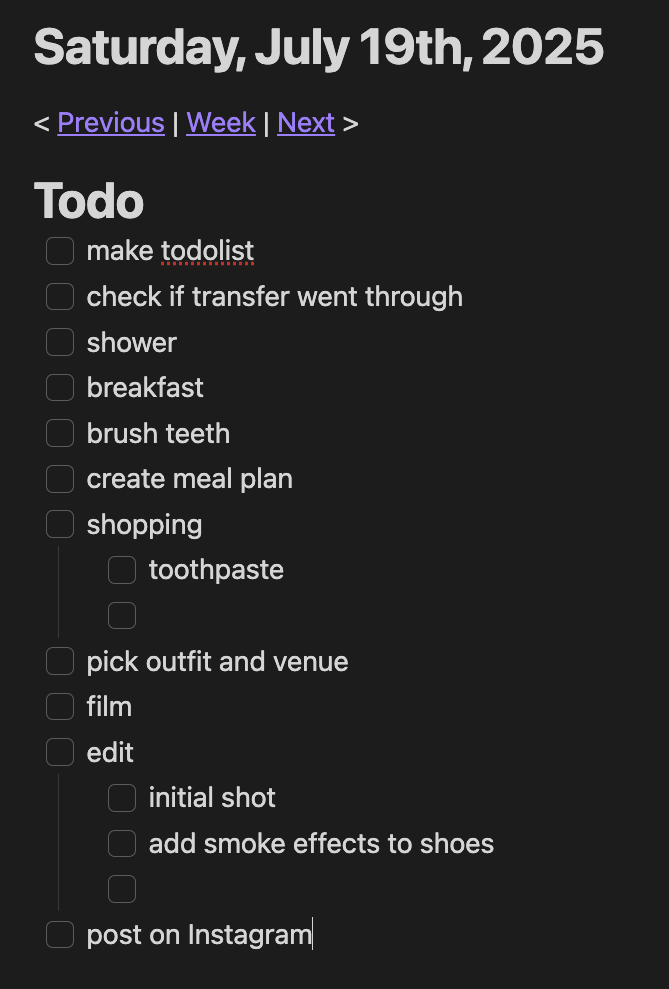
For the beginning of my daily routine, I generally consider the to-dos I recorded on previous days and then decide what else I’d like to get done. For example, I might have woken up to a Daily Note that had “buy toothpaste” and “check if transfer went through” on it, additionally decide I want to film a dance video that day, and then come up with the list shown to the right. The shopping list and video editing list would grow throughout the day as I make a meal plan and create the video footage, but it would be enough to start off my morning and check off tasks as I go.
The Tasks plugin, by Martin Schenck and Clare Macrae, allows Obsidian’s checkboxes to have additional properties such as priority, due date, and status. While the actual functionality of these properties can be determined by the user, they can be identified by an emoji coding system. A task with High priority would be followed by the “⏫” emoji, and a task with a due date of September 21st, 2025, would be followed by “📅 2025-09-21”. To assign properties to a task, you can either bring up a “Create or Edit Task” prompt from the command palette or simply start typing on an item in a checkbox list, and the Tasks plugin can be configured to auto-complete properties for that task. You can also assign custom behavior when a task is checked off, such as cycling between a unique list of statuses on each click.
In my vault, I haven’t set up much custom behavior for tasks yet, but I would like to implement certain ideas in the future. For example, I want to create a streamlined rescheduling mechanism. I often find myself copy-pasting to-dos that I didn’t finish into Daily Notes for a subsequent day, or otherwise rearranging to-dos. Hence, I’m thinking of implementing a system where adding the “Start Date” property to a task will make it automatically appear in the Daily Note for that date. In addition, I want to create an “Upcoming” section in my Daily Note that will display all of the tasks with an approaching “Due Date” along with what the due date is. Hopefully, I can implement these ideas soon, but for now, I arrange for these functionalities manually.
I also find it useful to have a separate itemized list of tasks for long-term projects. By separating my project tasks into a distinct note in the Projects folder, as opposed to scattering them throughout my Daily Notes, I can compartmentalize what I’m working on and get a better sense of my progress for each goal.
In fact, I even made a script to dynamically embed a list of tasks into another list of tasks. For example, if I want to get started cleaning my room, I could embed all of the high-priority notes in my Room Cleaning project into the Daily Note for today. Alternatively, if I were creating a video series, I could make a project note for each video and then embed all of them into a full series note so that I could keep track of my progress on multiple videos at the same time. However, the script could also use some improvements. It currently displays both to-do and complete tasks of the configured priorities, but I want to make it easier to update the list or clear all of the completed tasks. Overall, my workflow for tasks is a work in progress, but the Tasks plugin in Obsidian is proving to be an effective way to organize my commitments.
Metadata Menu
Without a doubt, I have a large vault containing many types of notes, and as mentioned in the Prioritizing Tags Over Folders section, I like to keep most of it organized by tag. In vanilla Obsidian (i.e., Obsidian without plugins), the two primary ways to tag notes are by using Obsidian’s built-in tag system and by assigning properties to the note’s frontmatter. To use the tag system, type a hashtag followed by the tag name anywhere in the note, and then that note will appear in the search engine when searching for that tag. For example, I use Obsidian’s tags to record system-wide properties, such as
for notes that were originally written in DayOne and
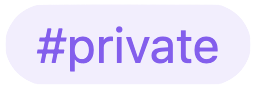
for notes that I want to encrypt as explained in the Privacy section. However, using Obsidian’s tags for all types of classification can quickly become a mess. The worst feeling is when you’re trying to find a note, you remember that you came up with a tag or genius organization scheme for it, but you forget what the tag is called or how the organization scheme works. Thus, for all other tagging, I assign properties to notes’ frontmatter, and I use the Metadata Menu plugin for improved features.
The frontmatter of a note is a named list of properties that can be added at the top of a note in YAML format—in essence, it’s a mapping of property names to their values for each note. For example, in my vault, I have the properties “choreographer”, “dancers”, “style”, “type”, and “music credits” for dance notes. These properties are much more useful than Obsidian’s built-in tags for many reasons. First of all, I can type the choreographer as text instead of tediously having to create a new tag for each choreographer. In addition, if I also stored “project manager” in my project notes, searching for the

tag would bring up both dances I choreographed and projects I managed, which can get cluttered and confusing. By naming the properties in Obsidian’s frontmatter, I can search for either ["choreographer": "Ezra Tock"] or ["project manager": "Ezra Tock"] to get more specific results. Moreover, Obsidian’s usage of YAML allows for text, lists, numbers, dates, checkboxes, and more, meaning you can add more advanced properties like “coworker list”, “rating”, “date created”, or “reviewed?”.
While frontmatter properties are more structured than Obsidian’s tags in most cases, the Metadata Menu plugin takes these improvements to another level. Created by the user SilentVoid, the Metadata Menu plugin allows you to define, edit, and interact with properties through customizable fields and menus. In particular, here are some of the features Metadata Menu provides:
- Enhanced user interface: Metadata Menu provides easy-to-use dropdowns, checkboxes, date pickers, and input fields for managing metadata without manually editing YAML.
- Support for even more types of data: In addition to text, lists, numbers, dates, and checkboxes, you can add hyperlinks to other notes, dropdown menu selections from a pre-made list, formulas calculated based on other fields, media files, and much more.
- Inline property editing: With Metadata Menu, properties can be added or changed from directly within the note text, not just in the YAML frontmatter, similar to the built-in tag system.
- The FileClass system: Metadata Menu introduces FileClasses, or templates for sets of metadata fields tailored to specific types of notes. For example, it doesn’t make sense for me to have a “choreographer” property in my School notes, so I only added the “choreographer” property to my “Dance” FileClass. By setting a note’s FileClass, the user interface only displays input controls relevant to the particular type of note as opposed to a generic list of all editable properties. However, FileClasses are just templates, so you can still add any property to any of your notes.
- Powerful querying with DataviewJS: When combined with Michael Brenan’s popular DataviewJS plugin, Metadata Menu can perform advanced searches and embed powerful displays into your notes based on metadata properties.
Future Ideas
While May 20th, 2025, marks the day I officially consider myself migrated from DayOne to Obsidian (see the Video Overview!), there is still much progress to be made. I don’t think my vault will ever be “finished” because it’s a living, breathing extension of my constantly evolving life. However, here are some additions I’m hoping to make in the near future so that they can improve the organization and efficacy of my workflow.
Privacy
The one unfortunate thing about Obsidian’s powerful search engine is that it doesn’t miss anything. In my case, I keep sensitive information and private journal entries in my vault, so it can be problematic if they emerge at the wrong time. Observers of my vault already pose a slight risk when I open Obsidian on my phone to check off daily to-dos, but I envision using Obsidian even more publicly in the future. I want to be able to open music notes when I’m DJing at a party, access personal documentation when I’m pair-programming at work, and add external links to my vault when I’m surfing the web with friends. Thus, in order to prevent shoulder-surfing from causing a breach of data, I need a solution to password-protect my sensitive notes.
There are already a dozen community-built plugins for encryption, so I will likely just need to research which one best suits my needs and potentially write additional code to make custom improvements. However, I have a concrete understanding of what functionality I’d like. First of all, I’d like to encrypt all of my private notes simultaneously so that I don’t have to remember multiple passwords. To make things easier, I’ll encrypt my entire Journal folder as well as specific notes in the Wiki folder like identification documents. It would also be ideal to only type the password once in an Obsidian session, so I’m envisioning the password keeping my private notes unlocked until 5 minutes of inactivity.
With regards to the strategy for password-protection, I’m thinking of encrypting the actual markdown files of each note. While there are also strategies that only lock access within Obsidian itself, the plain markdown files would remain unencrypted outside of the app. That would be problematic for me because in situations where I’m publicly displaying my vault, there’s a non-zero chance that observers could see the files in my MacBook Finder as well. Thus, I’ll stick to encrypting the actual markdown files.
While I’m finding a solution for encrypting my vault, I will also try to find a mechanism to secure media files in Google Photos. As mentioned in the Google Photos section, I store photos and videos from my vault in Google Photos, so if a private note contains media, I would probably also want to secure the media in Google. If Google Photos only supports the Android-specific private Drive folder for encryption, this might not be possible, but that wouldn’t be unacceptable. With encryption, the textual links to media in my vault would still be obfuscated, and my photos would still be locked behind a sign-in to Google Photos. Hence, I would only be susceptible to attackers scrolling through my Google Photos without direct links, but I’d still prefer to simply encrypt my sensitive media.
Stylization
To end on a fun note, the last feature I’d like to implement in the future is support for ✨emojis✨ and advanced formatting. In addition to making my vault feel more fun and expressive, emojis can serve as visual anchors for recognizing certain types of information more quickly. While I can currently add emojis to my vault from my iPhone or copy-paste them from a website on my computer, being able to add them directly through a plugin would be a huge convenience.
In addition to emojis, it would be great to have support for other advanced formatting like precise sections, callouts, or general stylization. In vanilla Obsidian, you can create section headers with hashtags according to typical markdown formatting. However, sometimes I wish I could end a section just as easily as I could start one and go back to the enclosing heading hierarchy. In addition, it could be cool to have custom callout bubbles for similar types of information, such as ?question,
💡idea,
❗warning, or
🔷example
. Lastly, I know Obsidian allows users to customize the theme of their vault, so I would love to find a more aesthetically appropriate theme for my use case. Generally speaking, I know plugins for emojis and advanced formatting exist, so I’m guessing it will be an easy upgrade, but I haven’t gotten around to researching my options and installing them.
Conclusion
Thanks for exploring how I use Obsidian as my Second Brain. Whether it was the video overview, personal philosophies, plugins, or my ideas for the future, I hope it gave you a sense of how this tool can be shaped into a digital thinking space that’s uniquely your own. With its open-source nature and active community, Obsidian is constantly improving, and I hope to continue sharing insights as my own vault improves alongside it.
When building a vault, start simple, follow your curiosity, and let your setup grow organically over time. If you’re a fellow Obsidian user or you have your own method of organizing a workflow, I would love to trade ideas! Don’t hesitate to reach out if you want to share your experience towards achieving an organized life or geek out on knowledge management.
Happy note-taking!![]()